Home > Administration & Operations > Marketing

Marketing & Communications

Marketing & Communications at PPSC

Marketing & Communications helps tell the Pikes Peak State College story and connects students, employees and our community with the information they need. Whether you're promoting a program, communicating with students, planning an event or creating something with the PPSC brand, we're here to help you find the right path forward.

sign post icon

If you're here, chances are you have something you want to accomplish. Maybe you need to promote an event, reach students, update a webpage, create a flyer or get the word out about something great happening at PPSC.

Good news: you're in the right place.

Your next step is figuring out the best way to get it done. Some projects can be tackled quickly with our self-service tools and resources. Others are a better fit for the Marketing & Communications team.

Not sure which path is right for you? That's okay. Start below, and we'll help point you in the right direction. Or review our Marketing & Communications Resources SharePoint site for more details, FAQs, and more. 

Explore Marketing & Communications Resources

Hint: All of our resources are in the hub linked above, except for one - generating your email signature

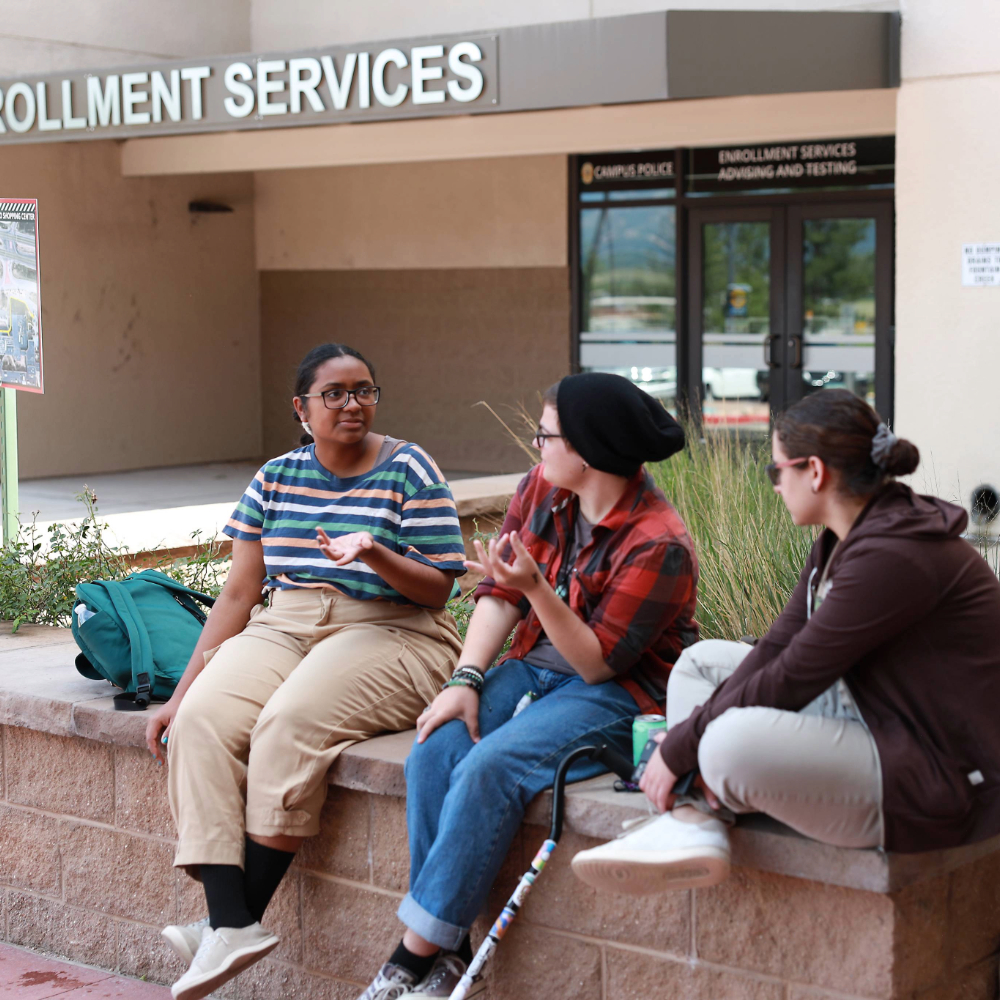
Students sitting outside enrollment services

Fair question! It takes time to submit a full request, so why do we ask you to submit one every time you need our help?

Everything we provide internally starts with our request system, including publicity/event promotion, video, direct outreach, and design. We receive a lot of requests and want to give them all equal treatment. The request system helps us do that. Fill out a request at least two weeks in advance for small announcements. For larger events, please fill out a request as early as possible so we can ensure ample time to meet deadlines, contact the press or provide graphics.

Our SharePoint site provides details on what happens after you submit, what it means when we update the status of a request, and tips for submitting a request that has all the information we need to get started more quickly!

View our resources site

Before You Submit a Request

Planning a Project? Start Early!

Giving us as much notice as possible helps us determine the best way to support your project. The more notice we have, the more we can do to help. Submitting too close to your due date will mean less coverage, or maybe even no coverage at all.

Give us as much information as possible

Before submitting your request, you should be able to answer some questions, like what are you trying to accomplish? What problem are you trying to solve? Who are you trying to reach? What would you like Marketing to help with? When do you need it? Are there events, deadlines or other details we should know?

Timeline

The scope, priority and complexity of your project will determine the timeline. Visit our Marketing Resources SharePoint site for additional guidance, publicity deadlines and answers to frequently asked questions.

thinking icon

Look, we know we're pushing the SharePoint site on this page a lot, but there are good reasons. First, it's full of amazing resources to answer your questions, like "what happens after I submit?" Second, a lot of people have told us, "Wow! This is so cool! I didn't know it existed!" So we want you to know it exists. And also find it cool. 

Marketing & Communications Resources SharePoint Site

So, go to the SharePoint site for details. But for a quick, abbreviated answer to "what happens after I submit?" ... 

  1. We review your request. We may ask you for additional information before we accept the project, or we may deny it and recommend a self-service option. 
  2. We scope, prioritize and assign the project. If we accept the request, we'll evaluate its scope, timeline and priority and connect it with the appropriate team member.
  3. We get to work.  You'll receive updates and questions through the PPSC Help Center/Jira. Responding promptly helps us keep your project moving!
  4. Mission accomplished. We'll deliver your completed project and notify you through Jira. 

One more button linking you to the Marketing & Communications Resource Site

Plot twist: one resource still lives here.

Most of our faculty and staff resources have a happy home on SharePoint. Email signatures, however, are doing their own thing. If you need to create or update your PPSC email signature, you're in exactly the right place. We've got the instructions below.

  • You must use Google Chrome to generate your signature.
  • Input your information into the fields below. The signature generator will populate with your information. Once it is complete, highlight the entire signature, including the logo, and copy it. Then paste into your signature list in Outlook.
  • No other text may added to, or placed below the signature block. (i.e. backgrounds, quotes, scriptures, links, logos, pictures, etc.)
    • You may add links to relevant professional certifications below your email signature.
  • Be sure you are using the most recent version of Outlook
  • If you log in to multiple computers, you'll need to use this process for each computer.
  • Not all fields are required, only those that are relevant to you and your position.

Please do not add any extra quotes or catchphrases. While that might be appropriate for personal email signatures, college emails are different. Those who receive your Pikes Peak emails might assume that what’s in your signature represents not just you, but the institution. For that reason, we ask that people not add to their signatures, beyond links to relevant professional certifications below your signature. And from a pragmatic standpoint, most people look there to see your title and contact info. Putting extra information or quotes there could make those searching more frustrating.
Computer icon

  1. Use form to generate signature
  2. Highlight and copy generated signature, including logo
  3. Open outlook desktop
  4. Select File
  5. Select Options
  6. Select Mail
  7. Select Signatures
  8. Select New
  9. Name the signature
  10. Paste Signature into the body
  11. Select OK
  12. Select signatures again
  13. Under "choose default signature" select new signature for new messages and replies/forwards
  14. Select OK
  15. Your signature should now be updated

  1. Open outlook and create a new email.
  2. In the new email window click on Signatures then, Edit Signatures.
  3. Name your signature and paste into the content block.
  4. Exit Signatures and select your signature from the drop-down to preview it in the email.

  1. Use form to generate signature
  2. Highlight and copy generated signature, including logo
  3. Open outlook web app in office 365
  4. Choose settings gear icon in upper right-hand corner
  5. Select "View all Outlook settings"
  6. Choose "Compose and Reply"
  7. Select +New Signature
  8. Enter Signature name
  9. Paste signature into block
  10. Select Save
  11. Under "Select default signatures" choose new signature for new messages and replies/forwards
  12. Select Save
  13. Your signature should now be updated
Phone icon

  1. Use form to generate signature
  2. Highlight and copy generated signature, excluding logo (On mobile it's hard to copy image, so using just the text is okay)
  3. Open outlook settings (upper left-hand corner)
  4. Choose settings gear icon
  5. Select Signature
  6. Paste in signature
  7. Select checkmark in the upper right-hand corner to save
  8. Your signature should now be updated

  1. Create an outlook signature on a PC or Mac following the instructions above.
  2. Send yourself an email with your signature in it.
  3. Open that email on your device.
  4. Copy the signature, including the logo.
  5. Go into settings, then "Mail, Contacts, Calendars."
  6. Under mail, choose signature.
  7. Delete everything in the signature block.
  8. Paste your copied signature into that block and you should be all set.


Pikes Peak State College Logo, links to website {{name}} {{degreeAcronyms}}
Pronouns: {{pronoun}}
{{title}}
{{division}}

office  719-502-{{office}}
mobile  {{mobile}}
fax  {{fax}}
main office  719-502-{{moffice}}

719-502-2000
Centennial Campus
5675 South Academy Boulevard
Colorado Springs, CO 80906

719-502-2000
Rampart Range Campus
2070 Interquest Parkway
Colorado Springs, CO 80921

719-502-2000
Downtown Campus
100 West Pikes Peak Avenue
Colorado Springs, CO 80903

719-502-2000
Center for Healthcare Education & Simulation (CHES)
1850 Cypress Semi Drive
Colorado Springs, CO 80921

719-502-4049
Delta Dental Center
11125 Cross Peak View
Colorado Springs, CO 80921